
Create CV Out appears in a new Echo Agent conversation when your track is Recruiting. If you still don’t see it, update Echo to the latest version.
Before your first CV Out
You need:- Recruiting as your Work type.
- The candidate’s CV.
- The job description.
- The candidate’s name as it should appear.
- Optionally, a Saved Session with the candidate.
Create a CV Out
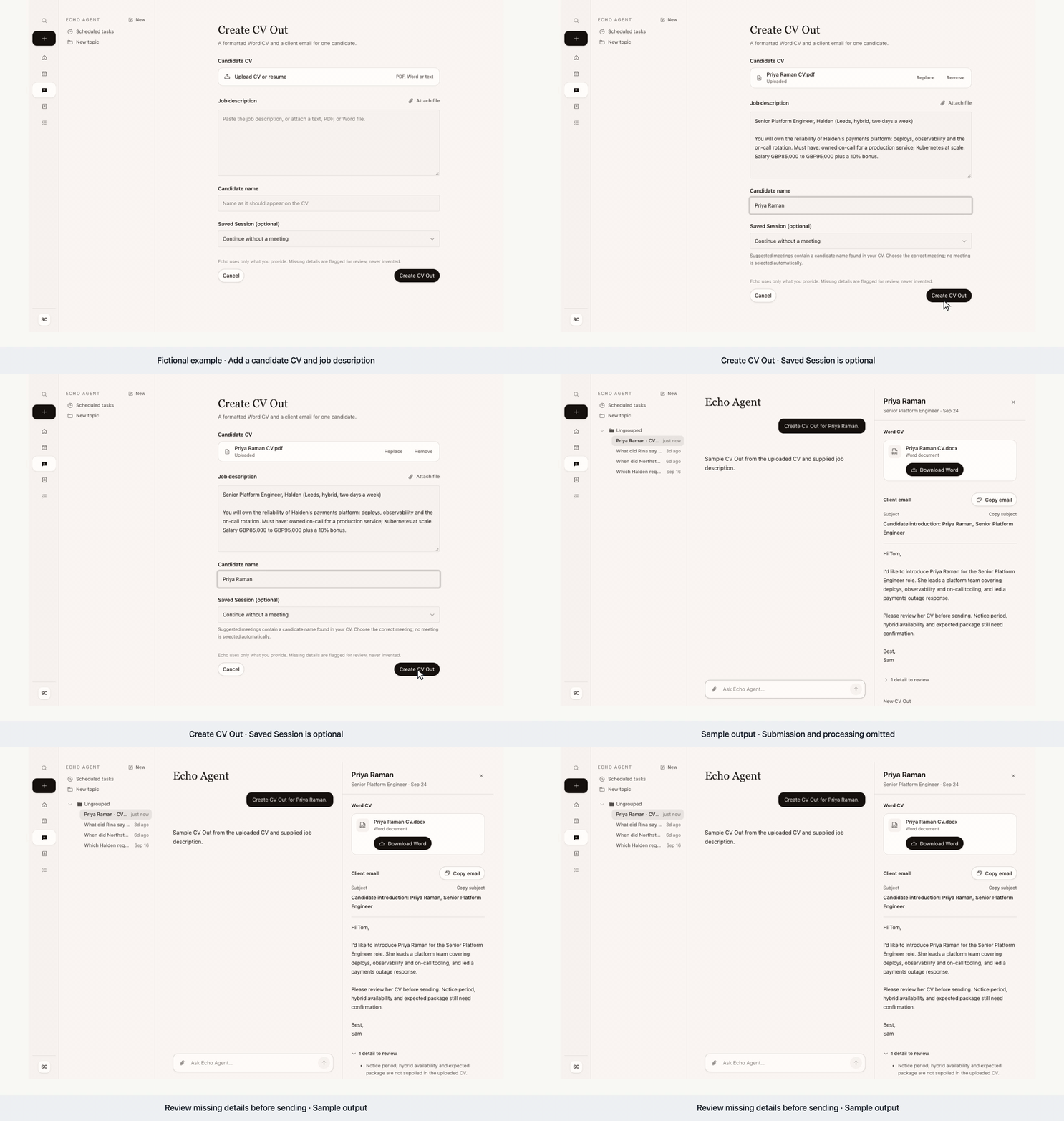
- Open Echo Agent, start a new conversation and select Create CV Out.
- Under Candidate CV, select Upload CV or resume and choose the CV (PDF, Word or text).
- Under Job description, paste the job description, or select Attach file to read it from a PDF, Word or text file.
- Under Candidate name, enter the name as it should appear on the CV.
- If you recorded a meeting with the candidate, such as their interview, choose it under Saved Session. Meetings with a candidate name found in the CV come first, under Suggested from the CV. Echo doesn’t choose one for you.
- Select Create CV Out.
Review the result
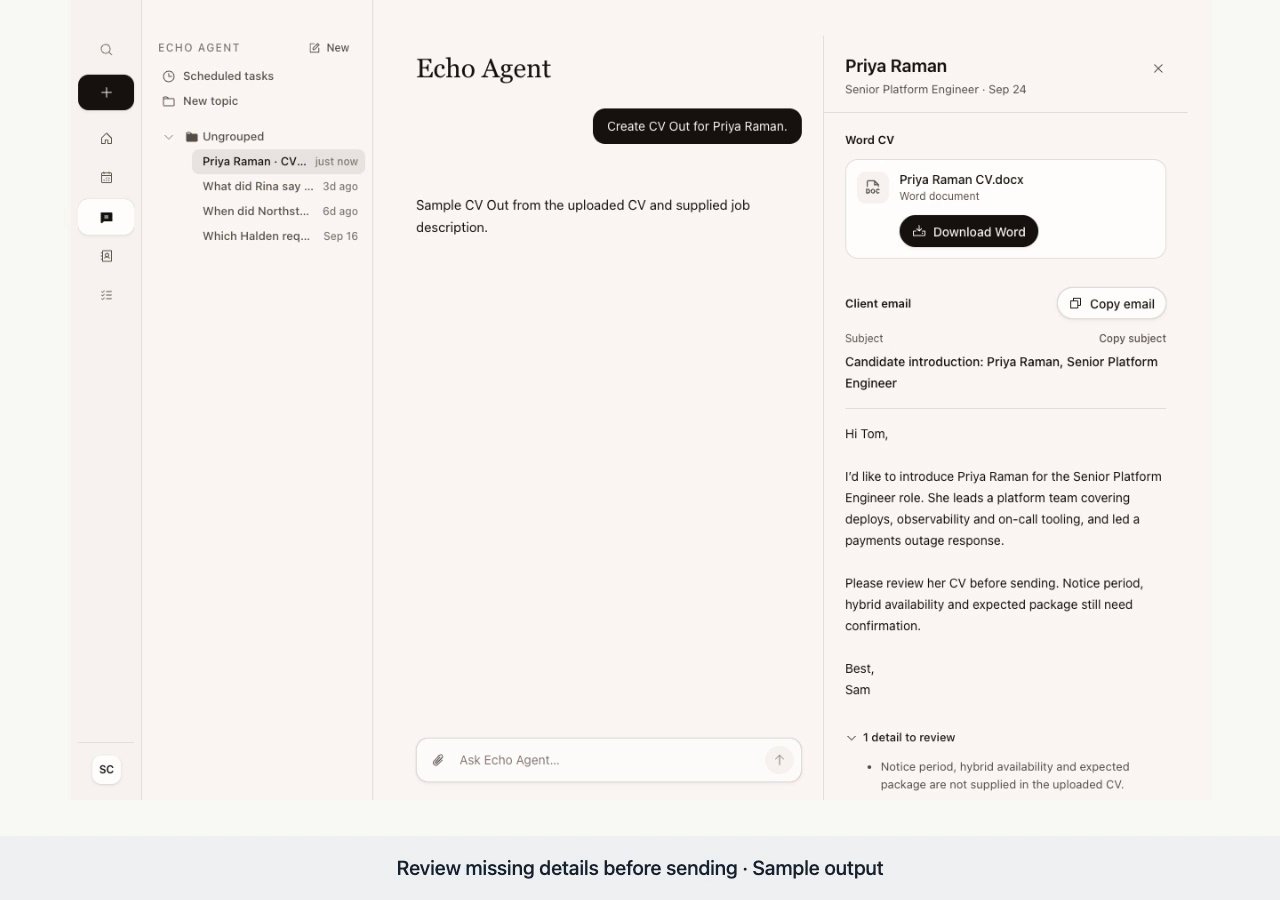
When it’s done, the CV Out opens in an Echo Agent conversation with the CV Out panel beside it. The panel shows the candidate’s name, the target role and the date, then the Word CV and the client email.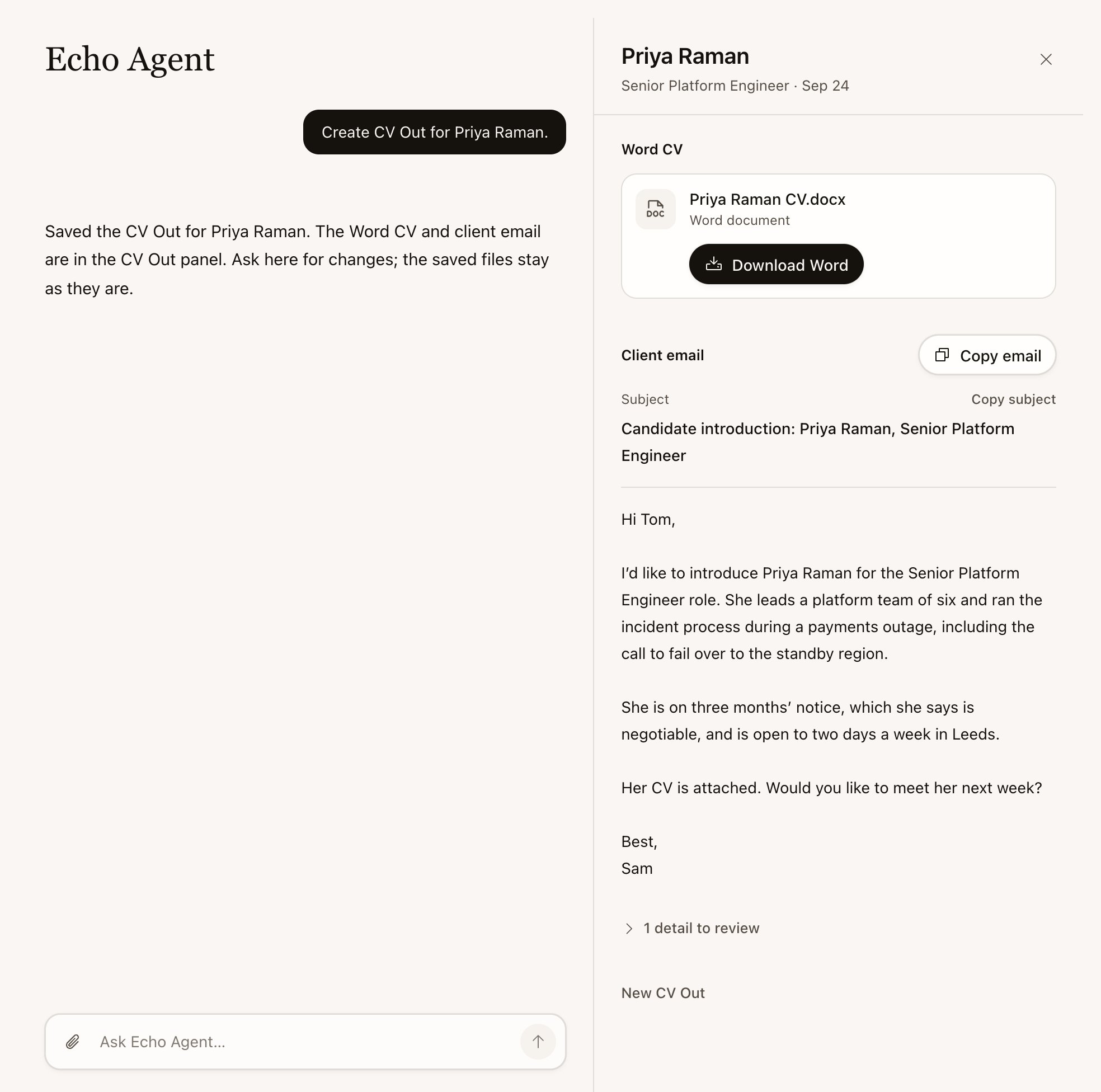
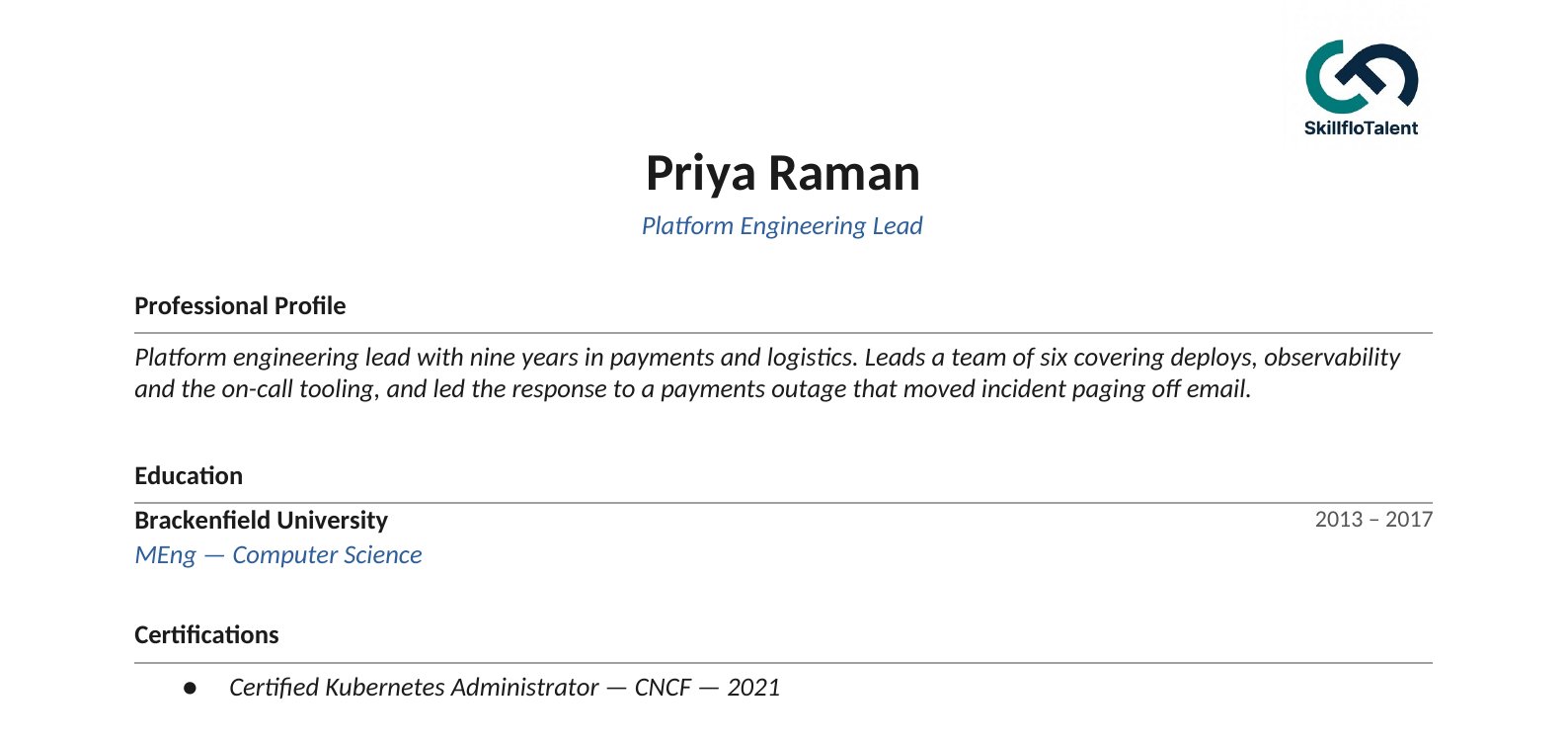
- Select Download Word to save the Word CV. Echo fills your CV format from what you provided and leaves out the candidate’s contact details.
- Select Copy subject to copy the email subject.
- Select Copy email to copy the body of the client email, then paste it into your email. CV Out doesn’t send anything.
- Open the list under the email, for example “1 detail to review”, to see what Echo couldn’t find or found conflicting, such as expected salary or notice period. The list also holds the sources Echo used and the job description. Echo flags missing details there instead of inventing them in the email, and copying the email leaves them out. When nothing is missing, the list is called Sources.
Come back to it
Recent CV Outs, under the Create CV Out form, lists your latest ones. Each opens in its Echo Agent conversation, titled with the candidate’s name, with the CV Out panel beside it. Ask for changes in that conversation, such as “Make the email shorter”. Echo answers there with the revised text. The saved Word file and the email in the panel stay as they are, so copy a revised email from the conversation.Other ways to do it
You can also ask Echo Agent directly, which is handy for a quick one-off or for a candidate without a meeting:- Format a CV: attach the CV and ask “Format the attached CV for a client.” Echo asks for the exact name to show at the top, including how to capitalize the surname, and uses your saved CV template, or Skillflo Talent’s standard CV if you haven’t added one.
- Draft a submission email: attach the job description and CV and ask “Draft a submission email to the client for Priya Raman.” Add your client notes or interview notes if you have them. If Echo spots a hard blocker, such as a missing must-have or a salary well above the client’s range, it asks whether to flag it in the email, leave it out or hold the submission. Unknown details are marked [To confirm]. Tell Echo your firm’s name, or it uses Skillflo Talent’s in the subject and sign-off.