
What you need
Echo listens through the computer you take the call on. Nothing joins the meeting as a participant. The phone apps are for in-person meetings, not phone calls. You can also message Echo on WhatsApp and Telegram; see Use Echo anywhere.
Download
Download for Mac
Open the file and drag Echo into Applications.
Download for Windows
Run the installer.
App Store
Echo for iPhone.
Google Play
Echo for Android.
On Windows, SmartScreen may say “Windows protected your PC” the first time you run the installer. Select More info, then Run anyway.
Sign in
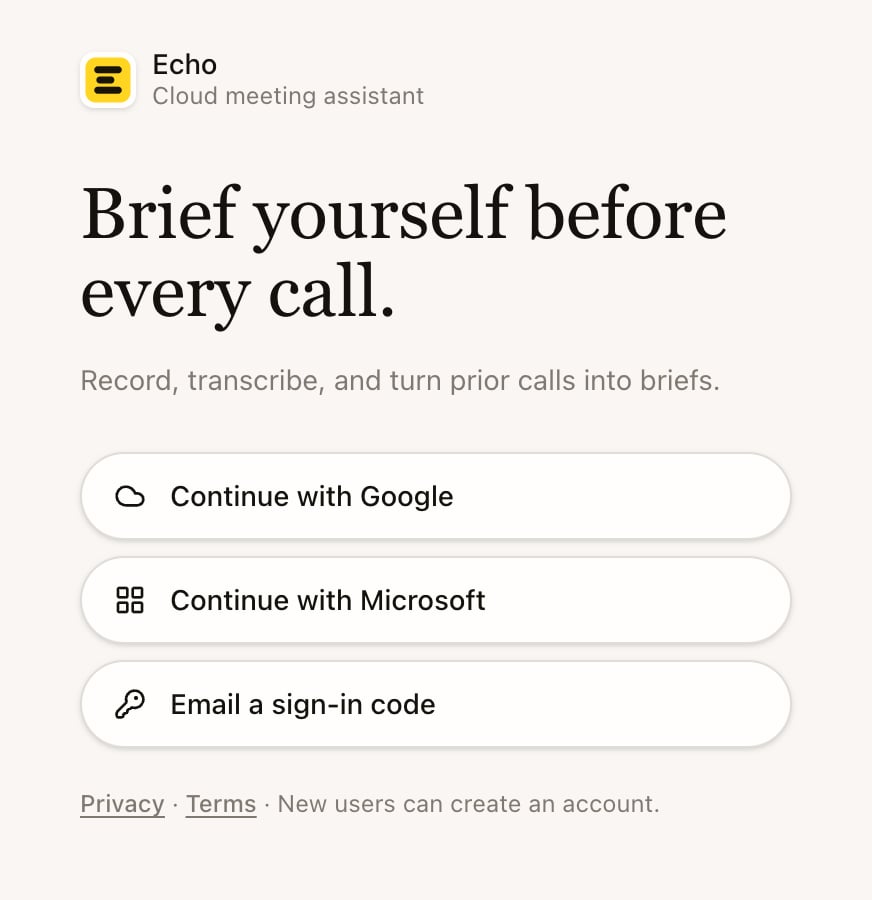
- Open Echo.
- Select Continue with Google, Continue with Microsoft or Email a sign-in code.
- Google and Microsoft finish in your browser, then send you back to Echo. With email, enter your address and select Send code, then enter the 6-digit code and select Verify & sign in, or open the link in the email.
Allow the microphone and screen capture
On a Mac, Echo asks for two permissions before your first meeting.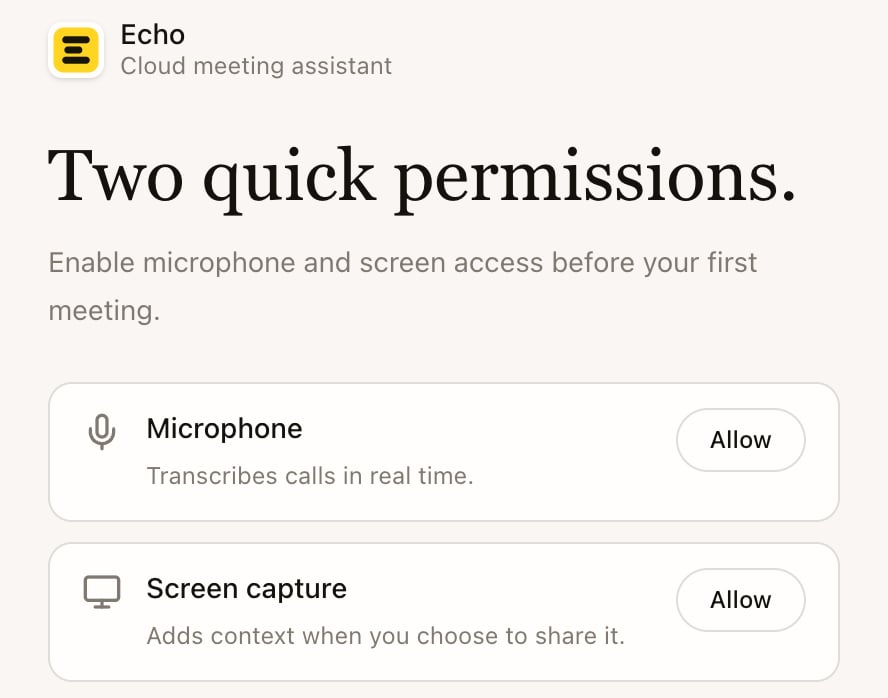
- Microphone lets Echo transcribe your side of the call.
- Screen capture lets Echo record your computer’s audio, which is how it hears the other people in an online meeting. macOS lists this under Screen & System Audio Recording (Screen Recording on macOS 14). It also lets you save a screenshot of a meeting when you choose to.
Tell Echo what you do
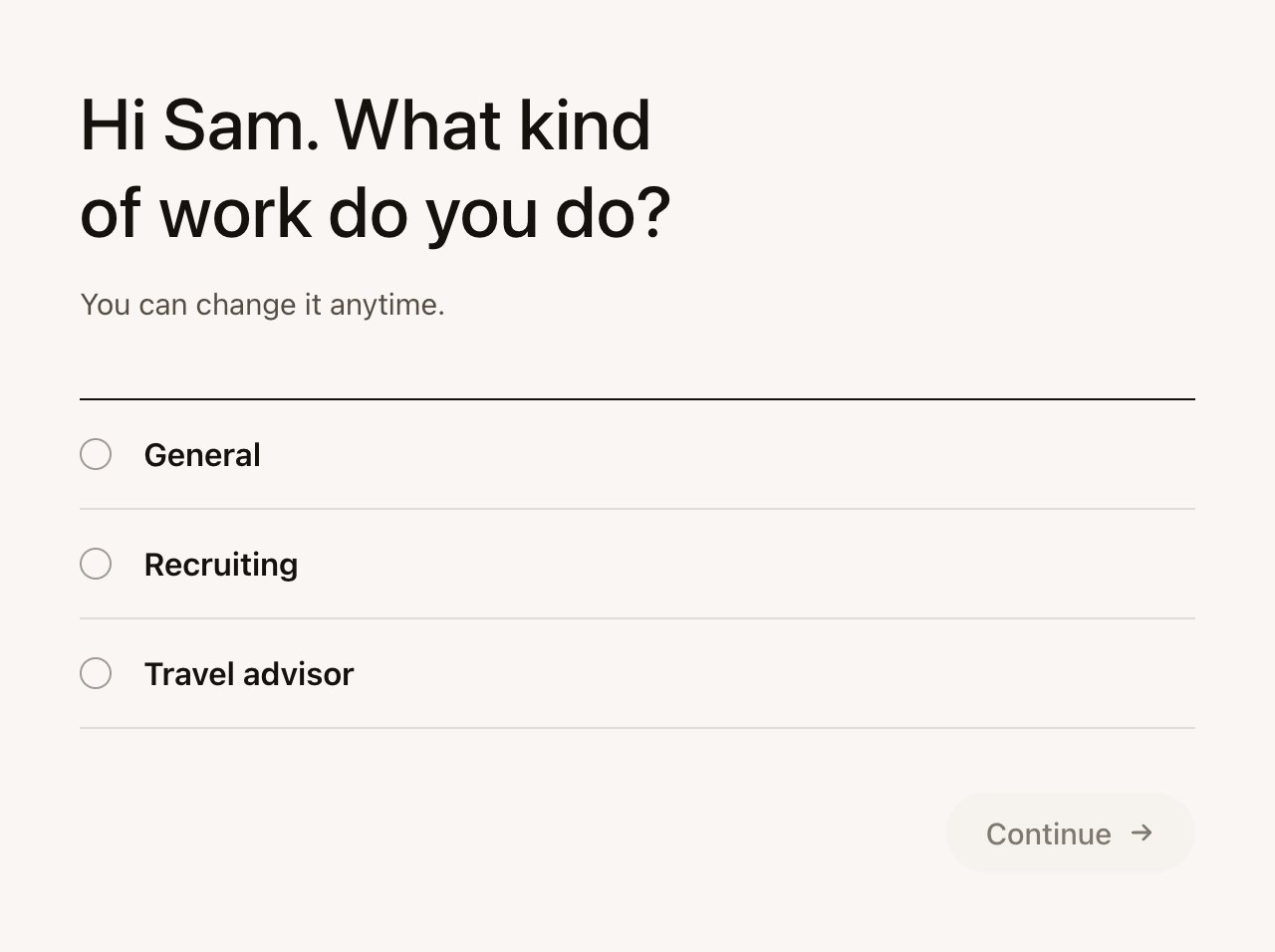
Set up with Echo
The setup below is available in desktop version 0.1.87 for Mac and Windows. An older installed version may still show the earlier format steps. See Release status for changes that still await a release.
- Answer the questions about the meetings you run.
- Review the proposed Meeting Types. Open one to edit its Final Notes or modules, remove a type you don’t need, or ask Echo to change the proposal.
- Select Looks good to apply it. Reading or editing the proposal alone doesn’t save it. If applying fails, retry; Echo checks what was saved before completing setup.
- Select Go to Home when setup finishes.
Keep Echo up to date
Echo downloads updates on its own while Download updates automatically is on in Settings › About. When a new version is required, Echo shows Update required: select Download and install, then Relaunch now.Next
Your first meeting
Connect your calendar, read a brief and take a meeting from start to finish.