
Name the speakers
Echo labels your microphone as you in online meetings. In some meeting apps, Echo can also see who the app shows as speaking; see Supported platforms. When that keeps pointing to the same person for a voice, Echo uses the name for all of that voice’s lines, even ones where the app didn’t show who was talking. Other voices get a number until someone names them. After the meeting, a note above the AI Notes and the transcript says how many voices need review. Open it to see each voice with a line of what it said:
Echo doesn’t apply a suggested or conflicting name by itself. You decide.
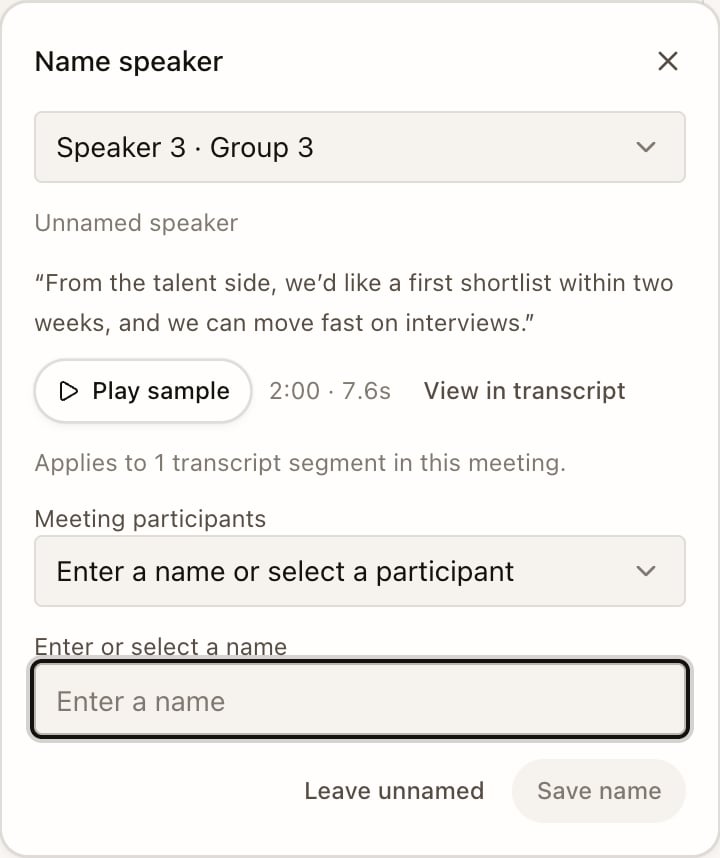
- Open the speaker review count and select Name or Rename, or select a speaker label in the transcript.
- Type a name, or expand the naming options and use Use a participant to pick a meeting attendee. Listen plays an excerpt when its recording is available; its timestamp opens that point in the transcript.
- Select Save name. If you can’t tell who it was, close the editor without saving. To clear a saved name, expand the naming options and select Remove name.
Play the recording
If Record audio was on, the Transcript tab has a player with skip back and forward and playback speed. Select Delete audio to remove the recording and keep the transcript.How long Echo keeps audio
Open Settings › Account & workspace:
In Echo’s cloud, recordings are encrypted in transit and at rest. A temporary, unencrypted copy on your computer is removed automatically within about 7 days.