You can share a meeting with people and teams in your Organization. Sharing gives them access to your meeting; it doesn’t copy it into their account, so you can take access back at any time.

Share with someone outside Echo

The External people option is available in desktop 0.1.87. If it is not in your Share dialog yet, update Echo.
  1. Open Share, then choose External people.
  2. Enter the recipient’s email address. They do not need an Echo account or Organization membership.
  3. Keep Notes selected, and optionally include Transcript or Recording.
  4. Select Preview as recipient to review the content they will see.
  5. Select Send invitation, or Create and copy link to send the restricted link yourself.
The recipient opens the link in their browser, enters the invited email address, and verifies an eight-digit code sent to that address. A forwarded link alone does not give someone else access. Codes expire after ten minutes; browser access lasts up to 24 hours before email verification is needed again. The shared view reflects the latest meeting content. Scratchpad, attachments, and Memory Recall are excluded. Under External recipients, use Edit access to change what someone can view, or Remove access to end access. Removing access cannot recall anything they already read or copied.

Share

  1. Open the meeting and select Share.
  2. In Add a person or team…, type a name and pick a person or a team, or choose Everyone at followed by your Organization’s name.
  3. Choose an Access level, then select Share.
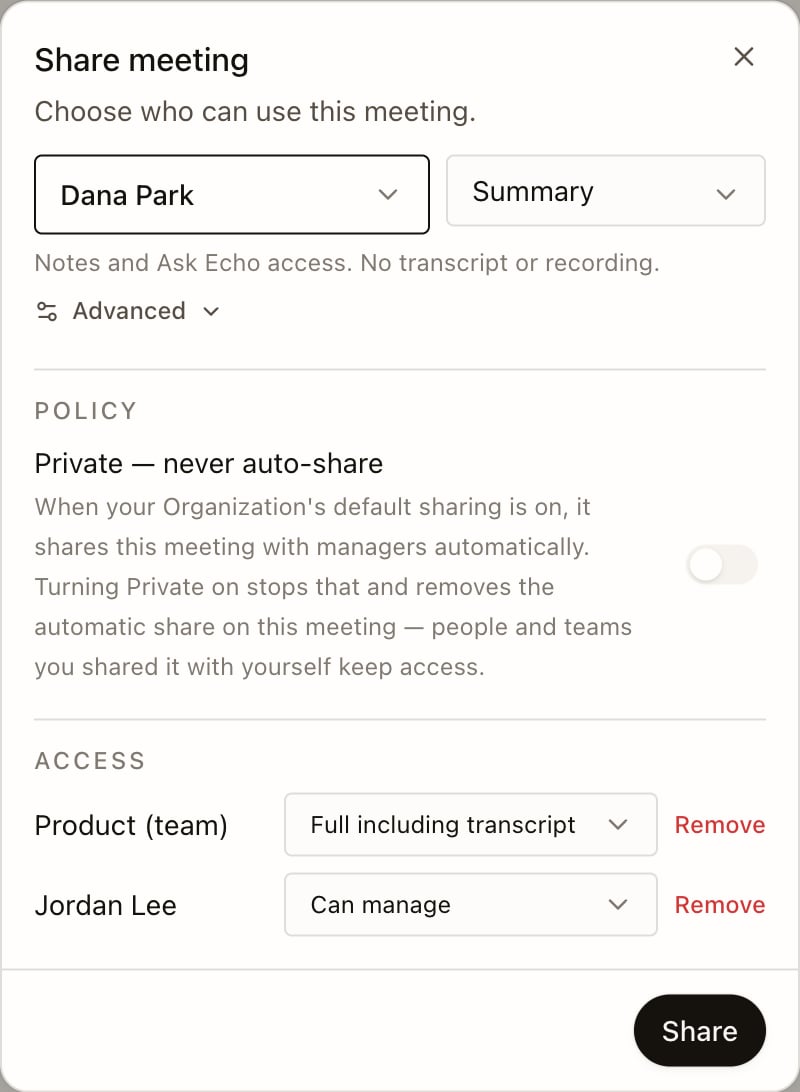
The Share meeting dialog for the Implementation review: your teammate Dana Park added with Summary access, the Private switch off, and the meeting already shared with the Product team (Full including transcript) and Jordan Lee (Can manage).
Open Advanced to choose individual rights: Notes, Transcript, Memory recall, Recording, Export and Manage sharing. The level then shows as Custom. Memory recall lets Echo Agent use facts from your meeting when the people you shared it with ask it questions. To change or remove someone’s access, open Share again and edit their row.

Keep a meeting private

If your Organization shares meetings automatically, switch on Exclude from automatic sharing (called Private — never auto-share in earlier releases). Echo removes the automatic shares for that meeting at once. Shares you made by hand stay, and you can still share it by hand later. See Organization and sharing. Turning the switch off makes the meeting eligible for future automatic sharing; it does not restore the automatic shares that were removed. People you invited directly, including external recipients, keep their manually granted access until you revoke it.

Meetings shared with you

Open Notes › Shared with me to see meetings others shared with you. They open read-only, with a banner naming who shared them. What you can see depends on the access you were given. If you have Export, you can download the meeting as Markdown from the banner. You can ask Echo about a shared meeting the same way as your own.