
Ways to start
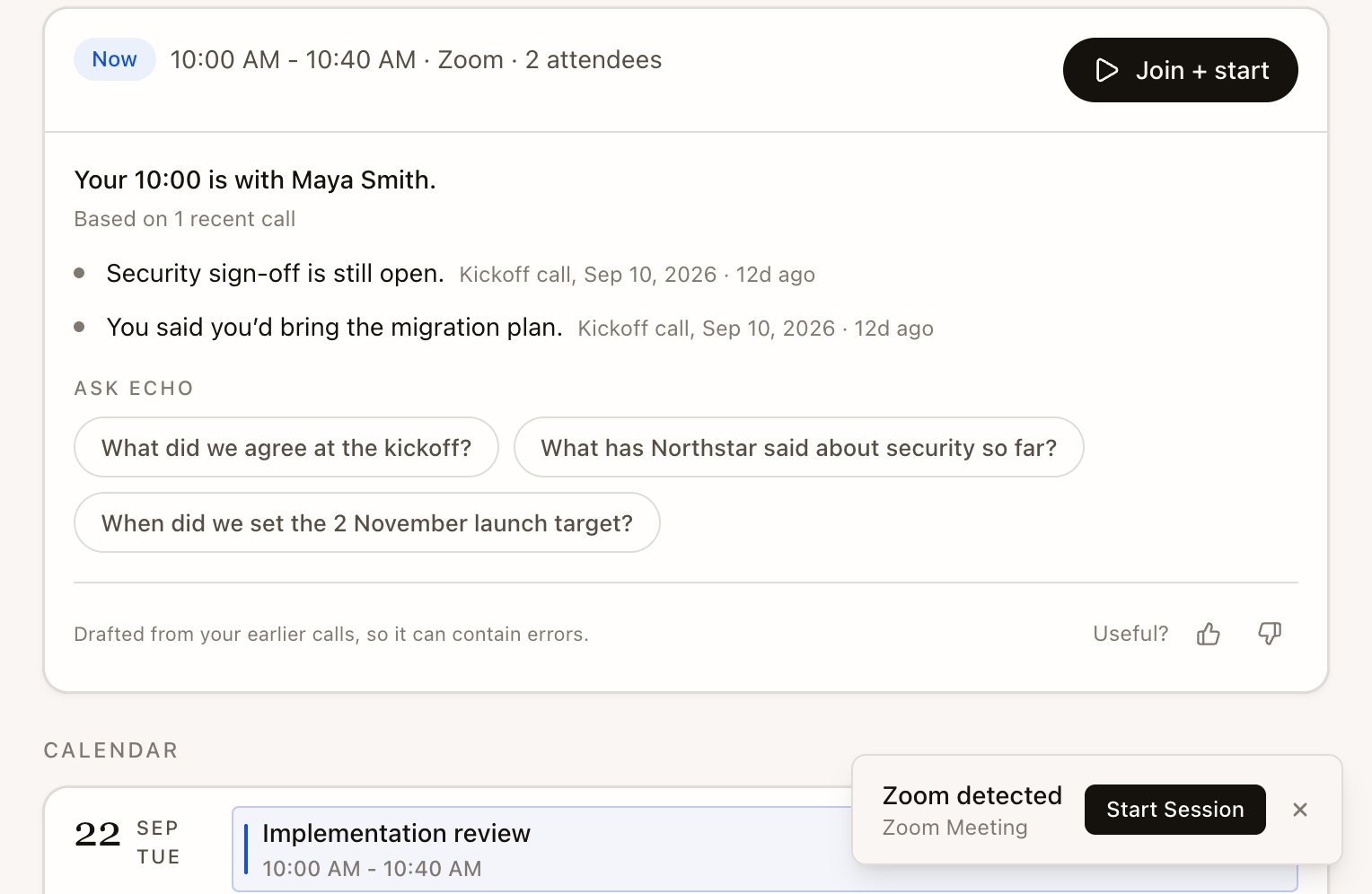
- On Home or the brief page, select Join + start on the meeting. Echo opens setup, and the meeting’s join link opens when you start.
- When Echo detects a call you’ve joined, it shows a prompt such as Zoom detected with Start Session. Which calls it detects depends on the app and your computer; see Supported platforms. Calendar reminders offer Join + Start Echo, and a call app using your microphone can bring up Meeting detected.
- Without a calendar event, select New meeting in the sidebar, then New meeting in the menu that opens.
Set up the meeting
Setup takes a few seconds. Echo fills in what it knows from the calendar and the Meeting Type.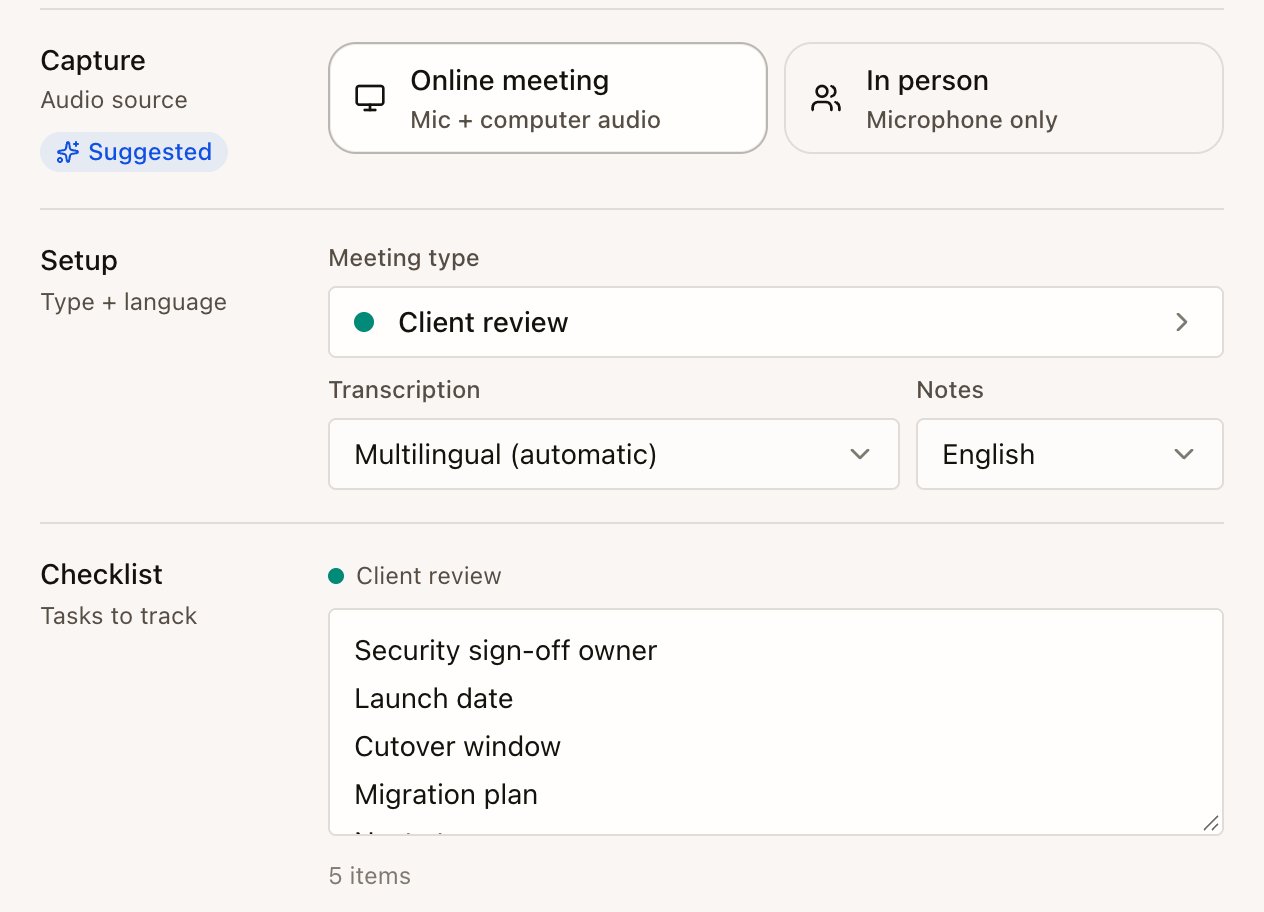
1
Choose how Echo listens
Under Capture, pick Online meeting to record your microphone and your computer’s audio, or In person to record the microphone only. Use Online meeting for any call on your computer, such as Zoom, Google Meet or Teams. For meetings away from your desk, use the phone app; it’s for in-person meetings, not phone calls.
2
Pick a Meeting Type
The Meeting type decides what Echo does during and after the call: which live help is on and how the notes are written. See Meeting Types.
3
Check the languages
Transcription starts on Multilingual (automatic), which handles calls that switch between languages. Pick a single language if the whole call is in one. Notes sets the language Echo writes the notes in.
4
Adjust the extras
If the Meeting Type has a Checklist, you can edit it for this meeting only, one item per line. Under Additional settings, add jargon such as product or client names so the transcript spells them right, and switch Record audio on or off. It’s the same setting as in Settings › Account & workspace, so your choice also applies to later meetings.
5
Start
Select Join + start, or Start capture when the meeting has no join link.