
Echo Agent was called Ask Echo in earlier versions. If your sidebar still says Ask Echo, update Echo to the latest version.
Start a conversation
Select Echo Agent in the sidebar. A new conversation asks What’s next?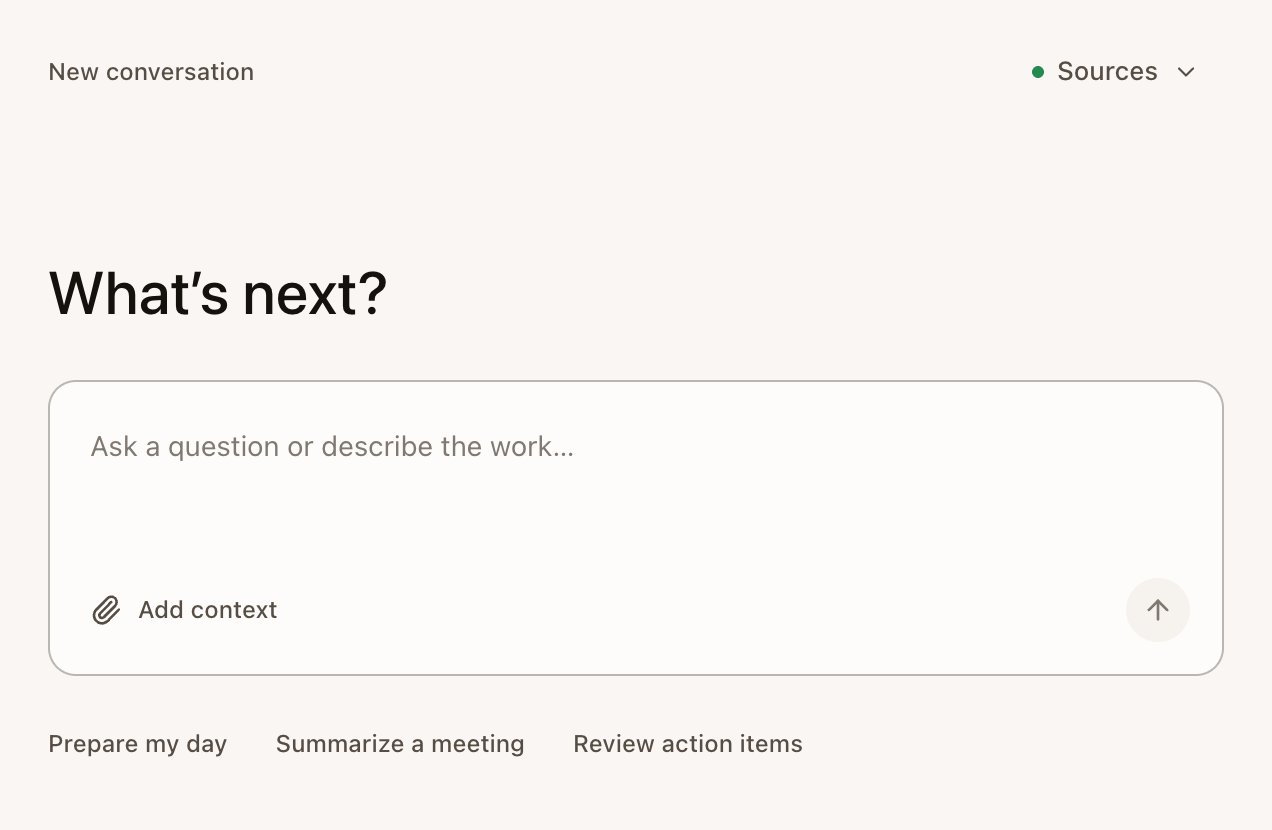
Watch it work
For bigger jobs Echo shows what it’s doing right now, such as searching your meetings or reading a file. Released desktop versions let you open Activity to see each step.Release pending — the next desktop interface keeps the working message above a compact step count. Open the count to see the steps; it starts closed. A failed request keeps its error and step history with the question. As of October 27, 2026, this interface is awaiting desktop release. See Release status.
Give it files
Select the paperclip (Add context in a new conversation), paste, or drag files onto the conversation. You can attach up to 4 files per question, 20 MB each: PDF, Word, Excel, text, Markdown, CSV, JSON, images (PNG, JPG, GIF, WebP), audio (MP3, M4A, WAV, OGG) and video (MP4, WebM).Get files back
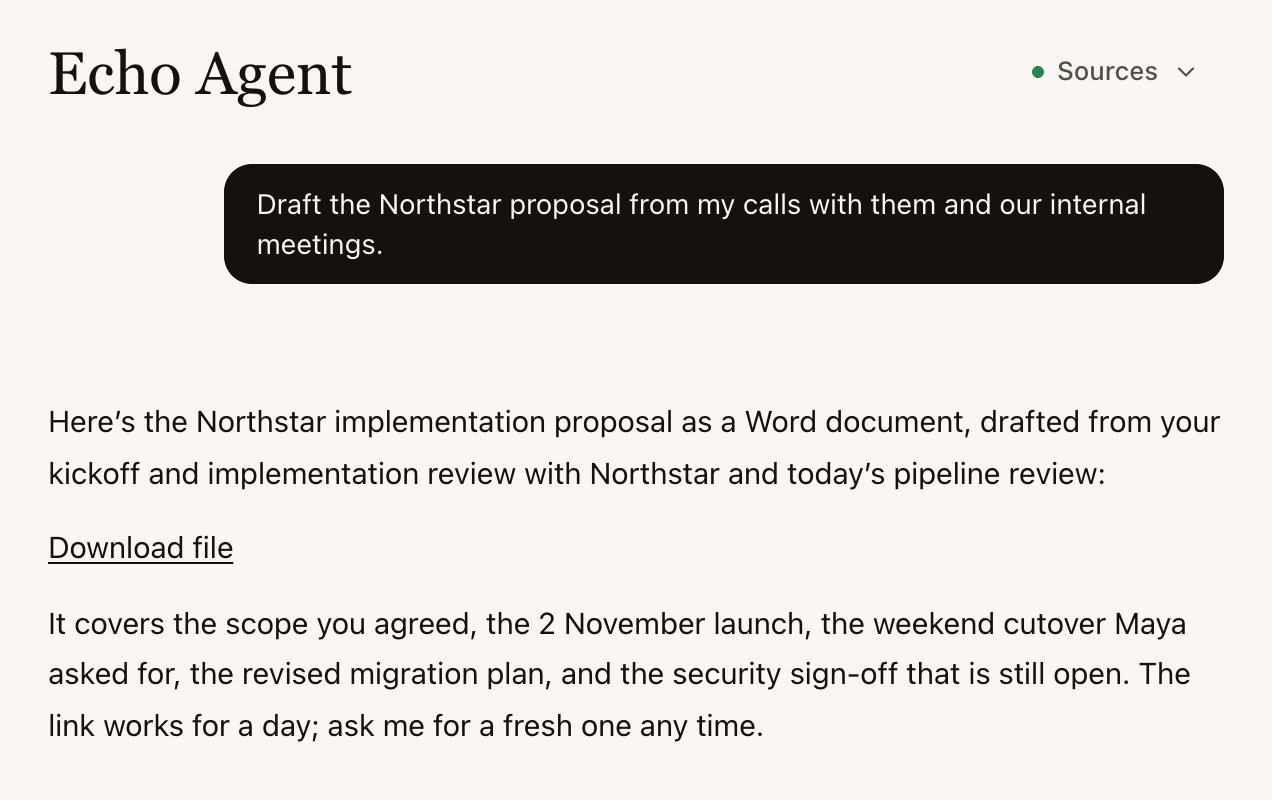
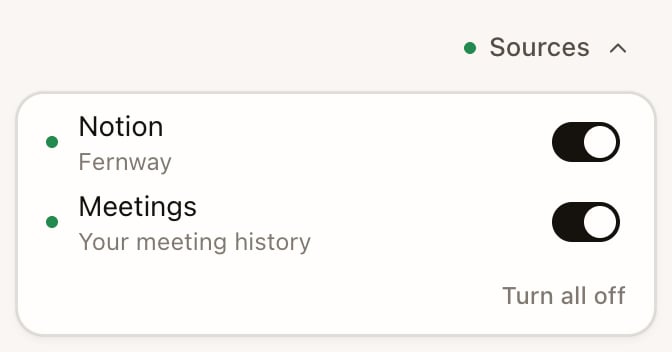
When the answer is a document, Echo makes the file and gives you a Download file link in the answer. It can make Word, Excel, PowerPoint, PDF, PNG images and simple web pages. Download links expire after a day; ask Echo for a new link if you need the file again. Some answers come as tables, forms or buttons you can click. Select Open panel to view a large one beside the conversation.Choose what it searches
Organize conversations
The sidebar keeps every conversation.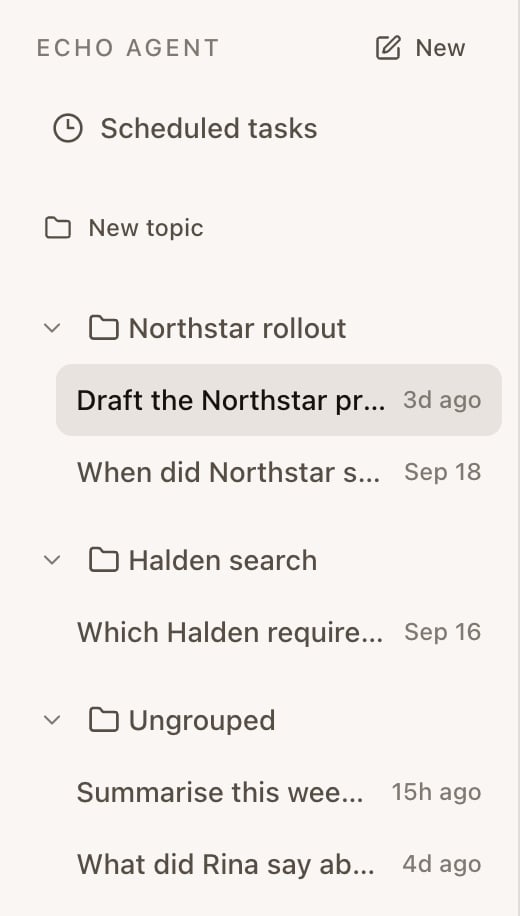
- Select New message to start a conversation.
- In earlier desktop versions, select New topic to group conversations, for example one topic per client. Drag a conversation onto a topic, or use Move conversation. Topics only organize; they don’t change what Echo can see.
- Hover a conversation to rename it (pencil) or delete it (trash). Deleting happens at once. Its menu has Move conversation.
- A blue dot marks an answer you haven’t read. A pulsing dot means Echo is still working.
Schedule something for later
Ask Echo to do something at a set time, for example “Tomorrow at 8am, list the open items for my Northstar call.” Scheduled tasks in the sidebar shows what’s coming up and when it will run, in your time zone.If you don’t see Scheduled tasks in the sidebar, update Echo to the latest version.
Echo Agent on other apps
The phone app has Echo Agent too, and your conversations carry across. You can also message Echo from WhatsApp and Telegram; those chats stay in those apps. See Use Echo anywhere.Ask about a person
On a contact’s record, select Ask Echo or Draft follow-up. Echo Agent opens with a ready-made question about that person in the composer, for you to edit and send.What Echo Agent won’t do
Echo Agent drafts; you send. It doesn’t send email, post messages or book anything on its own. When it needs to act in an app you connected, it asks you to approve that exact action first. See Connect apps.Next
What you can ask
Example requests, from quick lookups to finished documents.
Connect apps
Give Echo access to the tools you already use.