
1
Start manually
Open Echo and select New meeting from Home. If you have connected a calendar, you can use Join + start from the Meeting card instead.
2
Choose capture settings
In setup, choose Online meeting for a call on your computer, or In person for a room conversation. Choose a default Meeting Type such as General meeting. Keep optional live help off for this first run unless you already know you want it.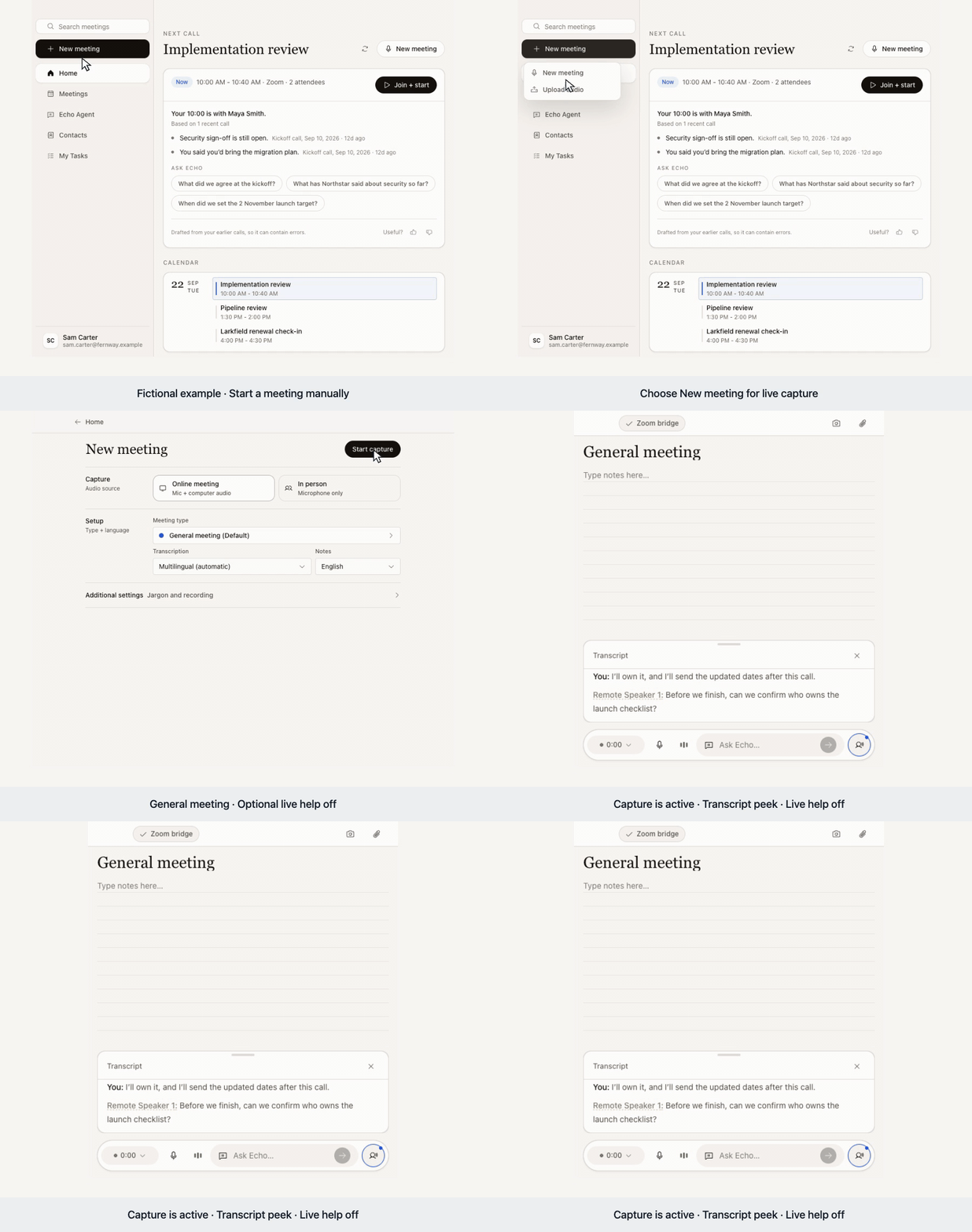
3
Start capture
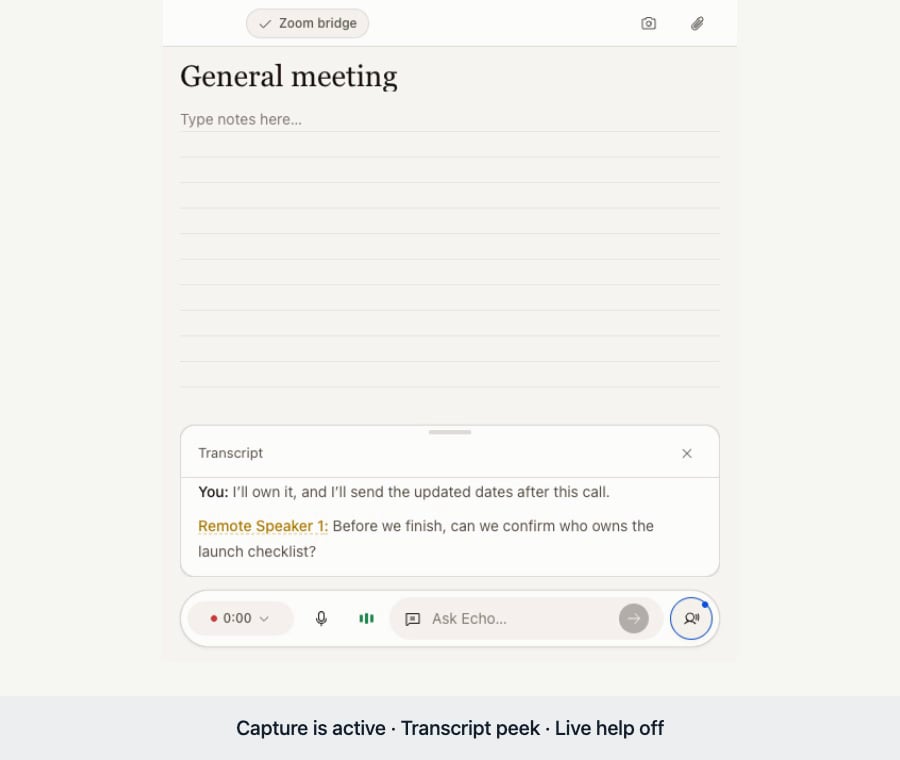
Select Start capture in setup. Echo’s meeting controls appear beside your call. Say a few sentences yourself. For an online meeting, ask the other participant to speak too.
4
Check the transcript
In the meeting window, select the speech-bubble control (Peek transcript). If you are using the floating Meeting Nub, select its transcript control instead. For Online meeting, confirm that your microphone speech and the other participant’s speech both appear in the transcript. For In person, confirm that speech through your microphone appears. If the other side is missing, see Troubleshooting.
5
End the meeting
Select the recording pill, then End meeting. Echo starts processing the saved Meeting. Processing can take a little while.
6
Read your notes
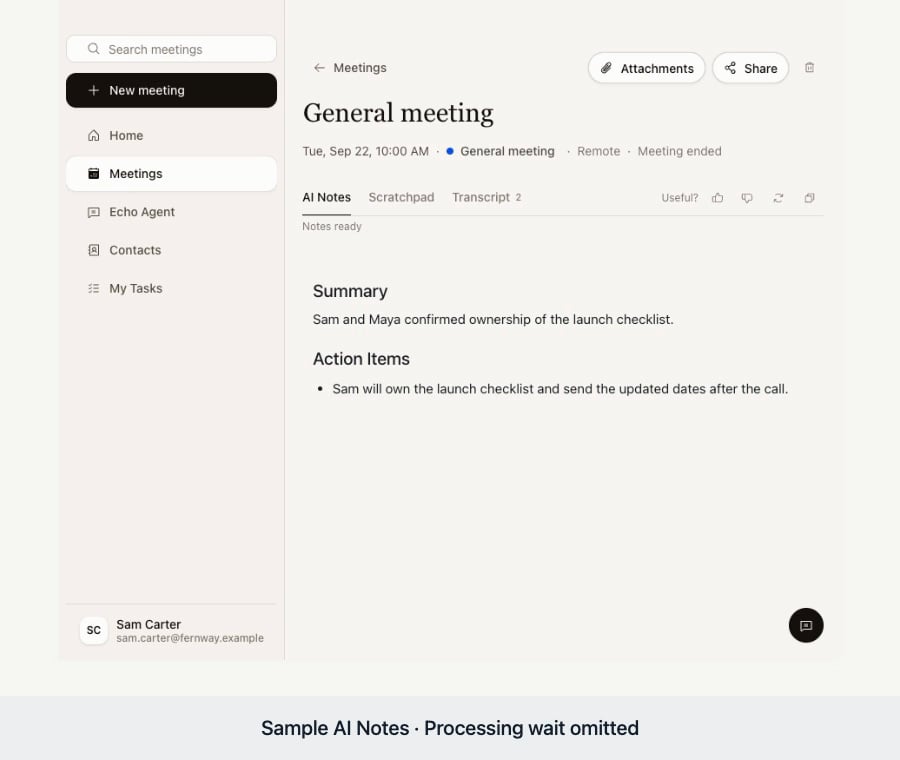
Open the saved Meeting from Notes. Read the AI Notes, check them against the transcript, and edit anything important.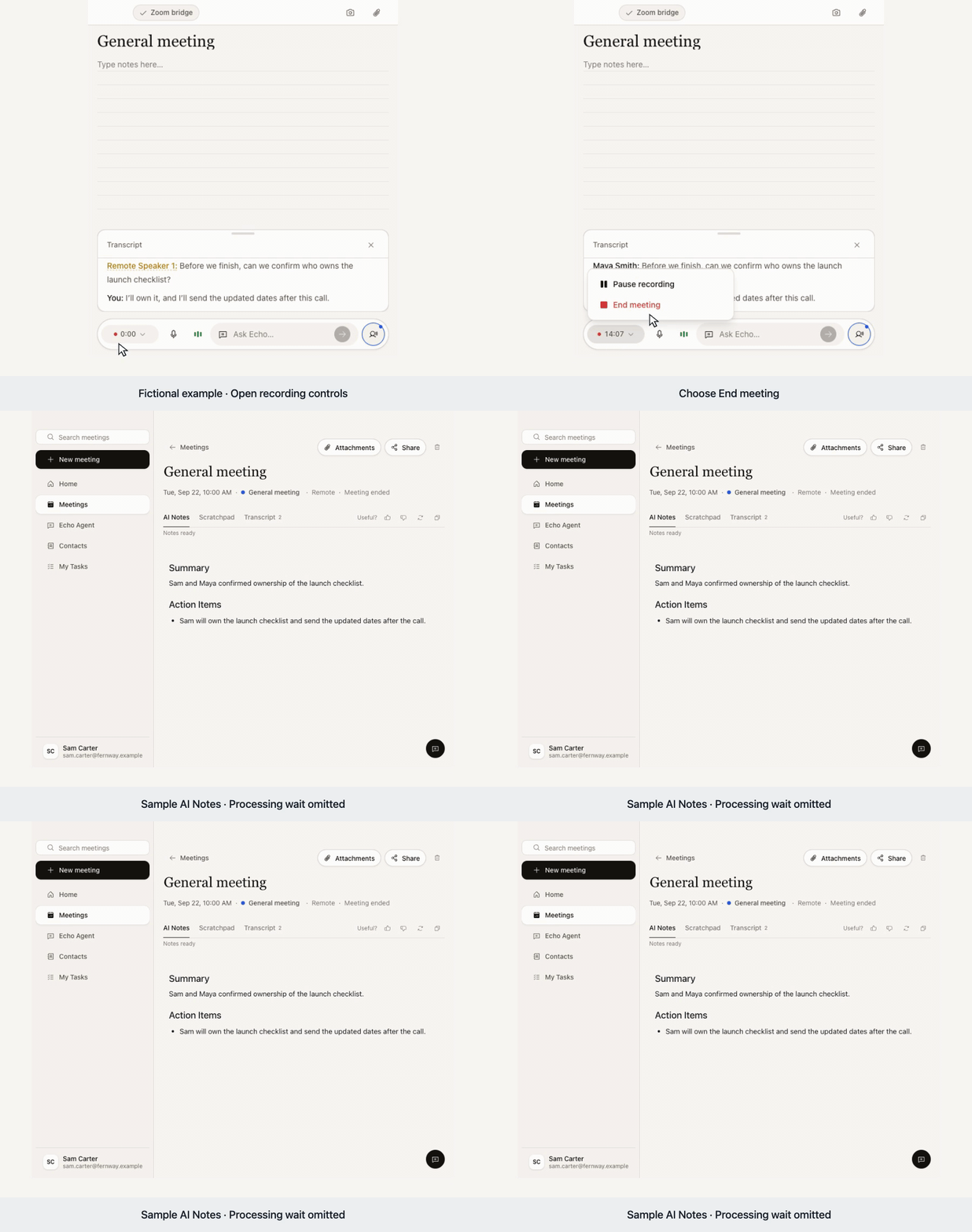
7
Check your tasks
Open My Tasks only if you promised to do something during the Meeting. A task-free Meeting still counts as success.
Where to go next
Connect your calendar
Show upcoming Meetings on Home and prepare briefs when Echo has history.
Turn on live help
Questions to ask, graded answers, checklist evidence and approved answers during the call.
Echo Agent
Ask about your meetings or have Echo make a document from them.