

If you don’t see the camera button, update Echo to the latest version.
Ask Echo and Quick Actions
Select Ask Echo to open a small chat. Type a question, or select a Quick Action to ask a common one in a single click.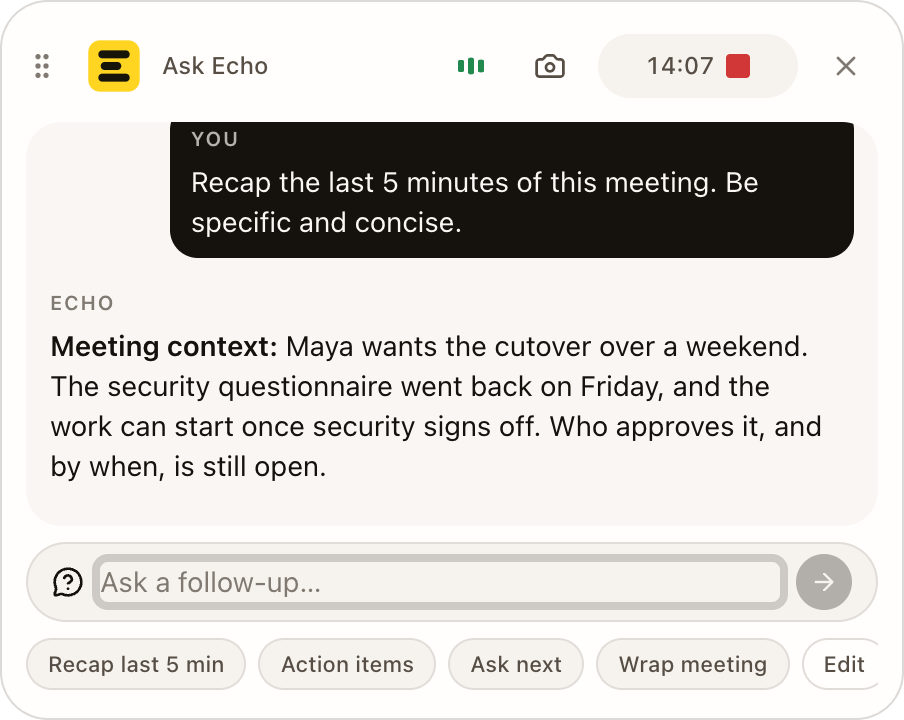
Wrap meeting gives you a short closing summary to say out loud. Gaps so far lists the screening topics that haven’t come up yet, such as notice period or right to work.
Make your own Quick Actions
- In the Ask Echo panel, select Edit. The editor opens in the meeting window.
- Change a button’s label and the question it asks, select Add action for a new one, or Remove one you don’t use. You can have up to eight.
- Select Save.
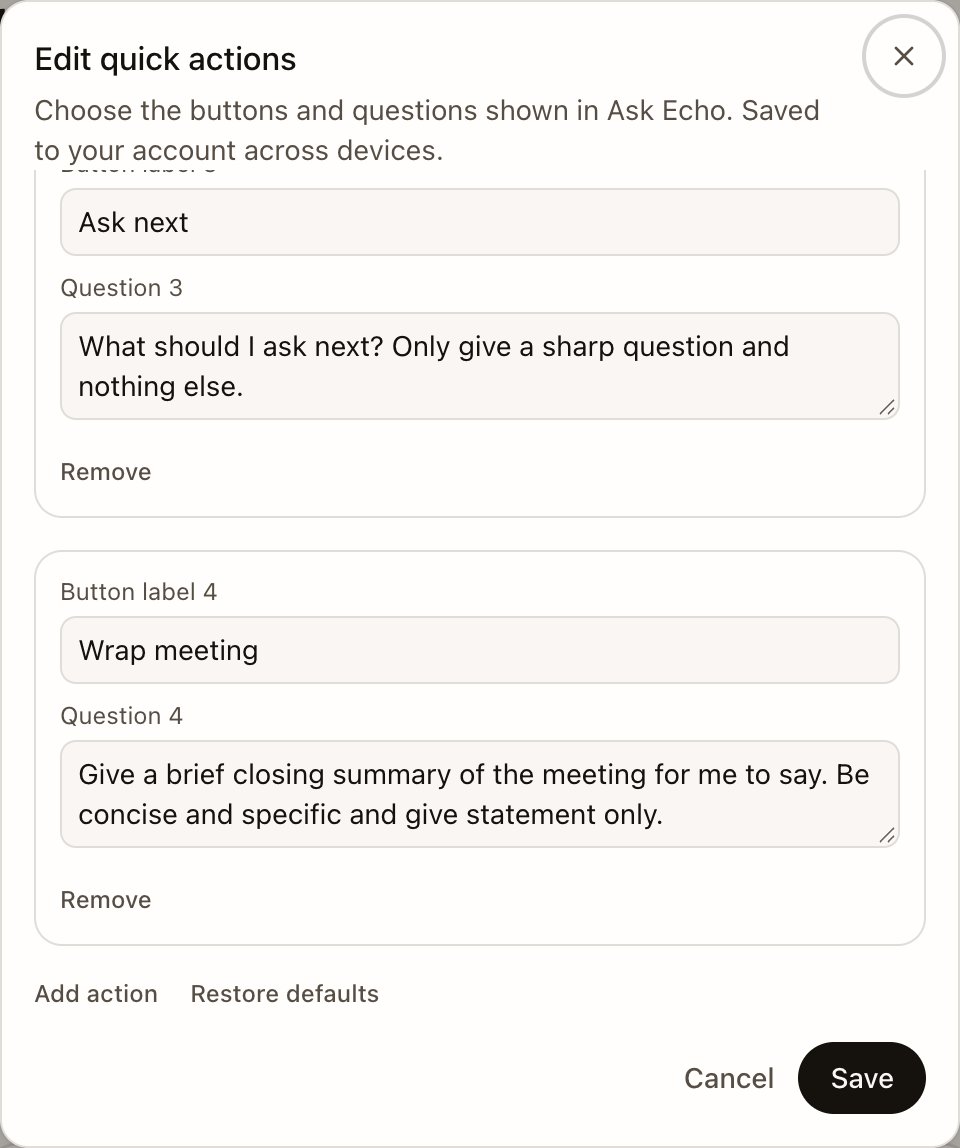
- Objections: “List the objections raised so far, in their words.”
- Numbers: “List every number mentioned so far with what it refers to.”
- Next steps: “What has each side agreed to do? Only list it.”
Checklist evidence
When Checklist is on for the meeting and has items, a Checklist button appears below the bar. Its count includes only fully covered items. Select it to see the list, then select an item to read its evidence. Opening the list or an item does not run a new check. Select Summarize evidence to check an item, or Refresh evidence to update it from the conversation so far. Each item has a status light: a hollow gray light means not checked yet, solid gray means checked with no supporting evidence, amber means partly covered, and green means covered. Hover over a light to read its state; screen readers announce the same name. A failed refresh keeps the previous evidence visible. Scroll the panel to reach Open in meeting window if you prefer more space. The same evidence list appears there. Automatic Checklist updates remain disabled while they are being evaluated.More controls
More controls opens a menu with a row for each part of live help. Select a row to open its panel. FAQ Answers and Questions to ask also have a switch to turn them on or off for this meeting. The Checklist row only opens its panel. On Windows, Computer audio picks the speaker or headset your call app plays through. To read incoming speech in another language, turn on Live translation in this menu, then choose Language. See Read live translation.Keyboard shortcuts
Two shortcuts work anywhere while a meeting is running:
After focusing the Nub, press a single letter: M mute, A Ask Echo, N notes, T transcript, C checklist, E pause or end. Esc takes you back to your call. You can change shortcuts in Settings › Shortcuts. See Keyboard shortcuts.