
The ones Echo gives you
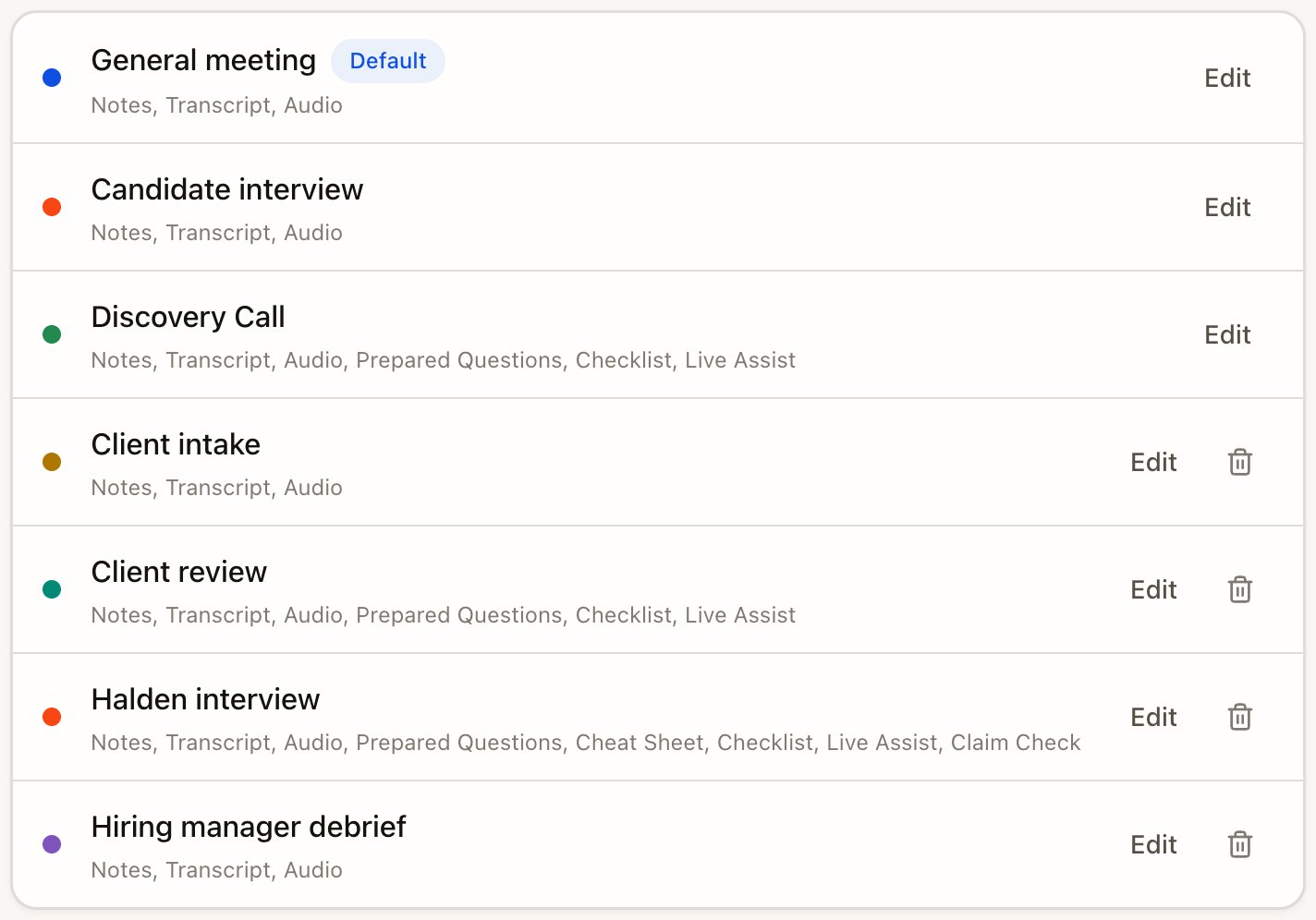
The default catalog follows Work type. Echo preserves Meeting Types you created, customized or used, so an older account may retain Discovery Call, Client intake or Hiring manager debrief. Client intake was renamed Client briefing. See Client briefings and hiring manager debriefs.
Live modules in the current defaults, including Checklist, Questions to ask and FAQ Answers, are off until you switch them on. A saved checklist can contain topics even while its live module is off. Preserved or customized types keep their settings. Live Assist and live Claim Check are disabled and hidden in desktop 0.1.87; existing settings remain saved.
Review the checklist and modules on your actual Meeting Type before capture; preserved and customized types can differ from the defaults above.
Create a Meeting Type
- Open Settings › Meeting types and select New. You can also pick New meeting type in the Meeting type list during setup.
- Under Name and default mode, name it, for example “Quarterly business review”, and choose Remote or In-person as the Default capture mode. Pick a color dot to spot it in lists.
- Under What Echo does, switch on what you want during the meeting (below).
- Review it and select Save meeting type.
What Echo does
See Turn on live help for how each one behaves during a call.
Write the checklist
Under Checklist, list one topic per line in Rubric items, for example:Import FAQ Answers
Switch on FAQ Answers, then select Import Q/A document and choose a TXT, Markdown, PDF or Word (.docx) file with questions and answers. Review the entries Echo found and fix any that came through wrong. You can save up to 100 entries.Tell Echo how to write
Two parts take your own instructions, called guidelines. Each starts on Echo defaults and shows Customized once you’ve written something.
Guidelines tune what Echo includes and how it phrases it. When a guideline conflicts with Echo’s own rules for that output, Echo’s rules win.
Changes apply to meetings you start after saving. To apply new note guidelines to an earlier meeting, open it and select Regenerate notes.