
Set it up once
- Open Settings › Meeting types › Candidate interview.
- Under What Echo does, switch on:
- Questions to ask, to draft questions before each interview and grade the answers.
- FAQ Answers, then select Import Q/A document with the client’s approved answers on pay, hybrid work, team and process.
- Review the Checklist and switch it on if you want live checks; it is off in current defaults. It starts with Echo’s Interview Scorecard: location and right to work, current and expected package, notice period, other processes, motivation to move, communication, languages, technical and domain skills, and more. Rewrite it to match how you assess candidates.
- Select Save changes.
Before the interview
Open the interview from Home or your calendar. The brief page shows anything from earlier calls with the candidate, and your Questions to ask. Edit them as you like, one per line. If the interview is linked to a Skillflo Hire candidate, Echo also uses the job description and CV. See Link interviews to Skillflo Hire. For an interview in a room, choose In person in setup so Echo records from your microphone only.During the interview
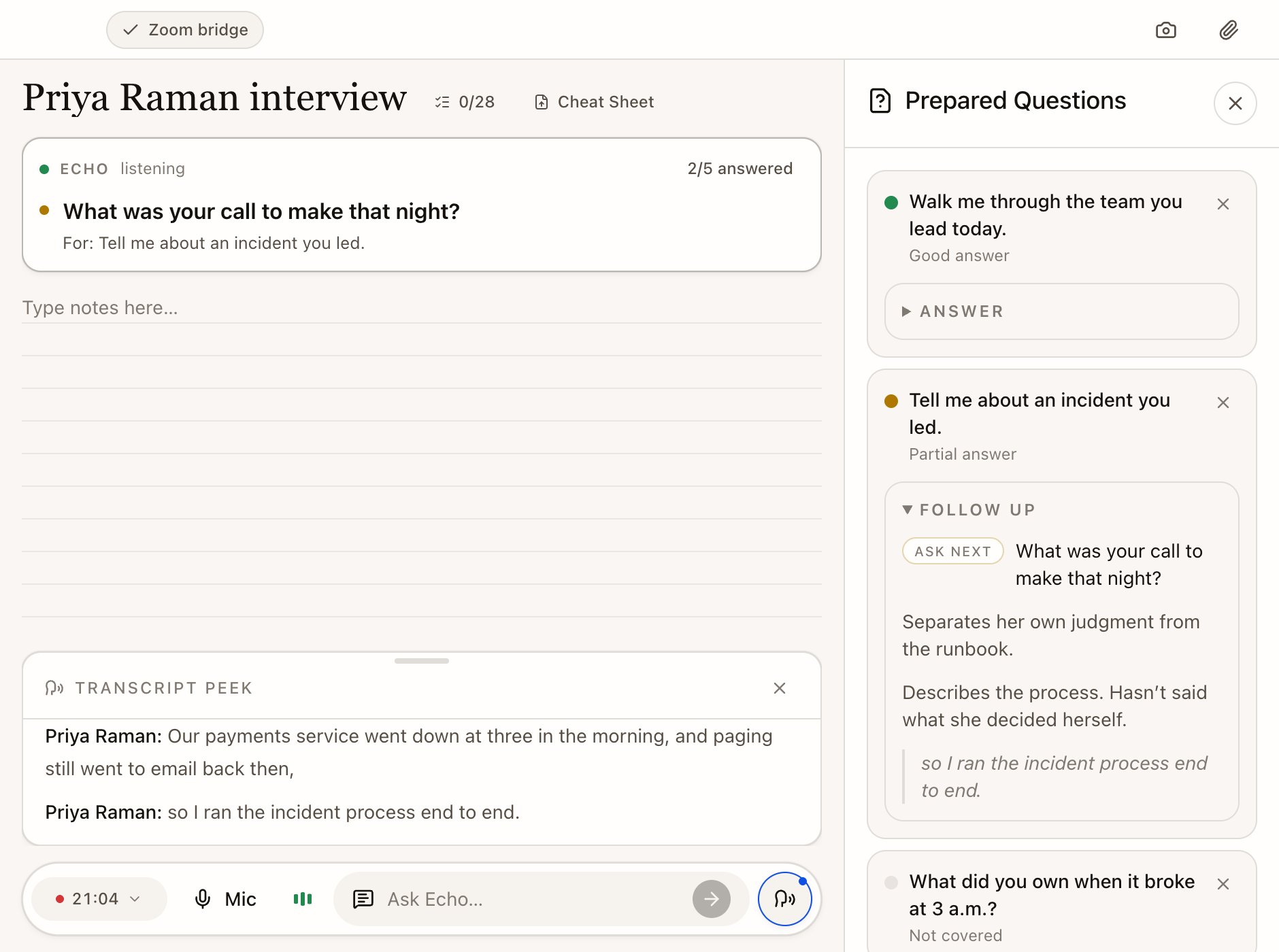
Questions to ask are graded as the candidate answers.
Graded questions
Each prepared question turns green for a good answer, yellow for a partial one or red for a weak one, based on what the candidate actually said. Partial and weak answers come with a follow-up to ask. Questions not covered yet stay grey, so you can see what’s left at a glance.FAQ Answers
When the candidate asks a question covered by FAQ Answers, such as whether the role is hybrid, Echo shows the answer you agreed with the client, word for word.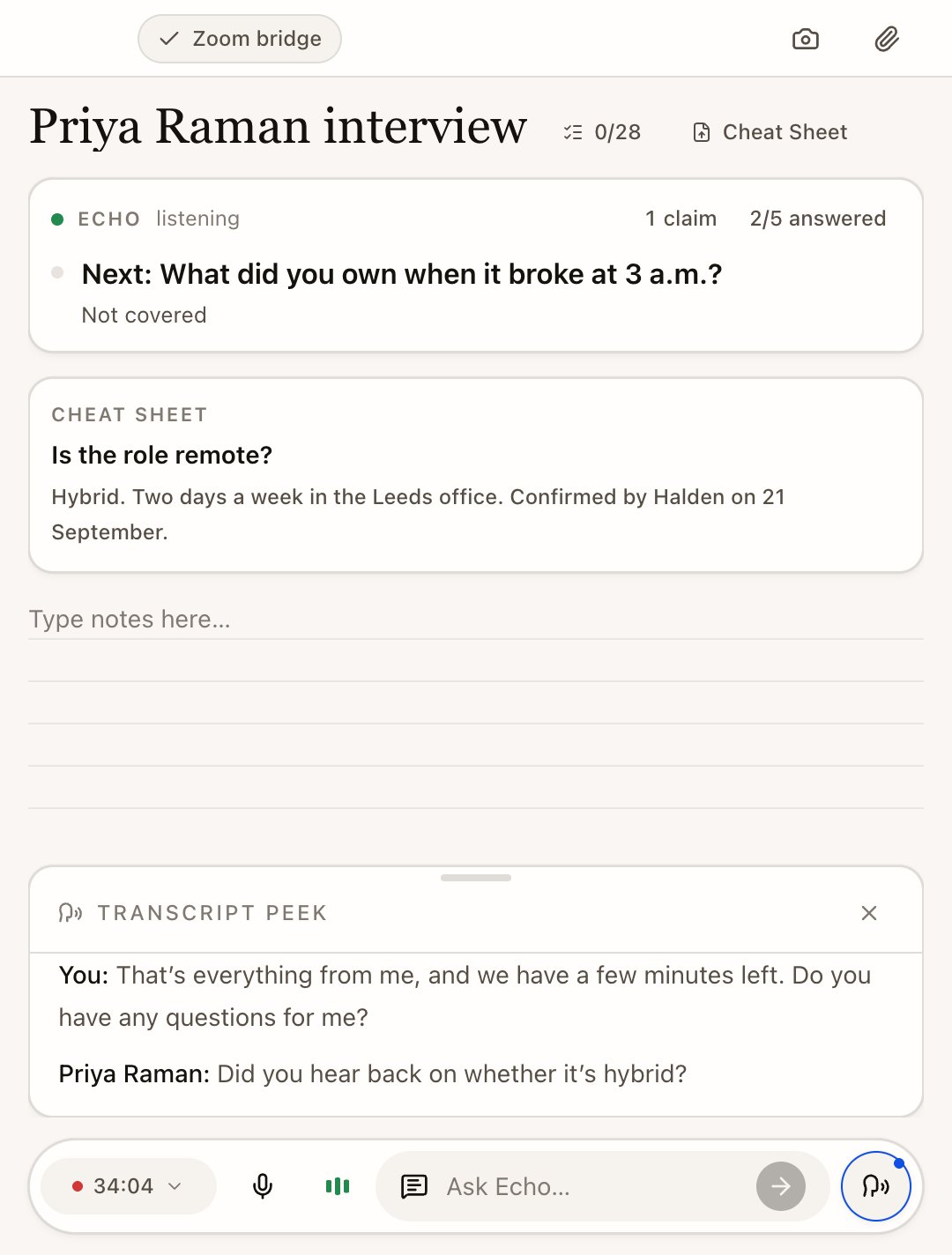
Quick Actions
Open Ask Echo in the Meeting Nub for the recruiter set: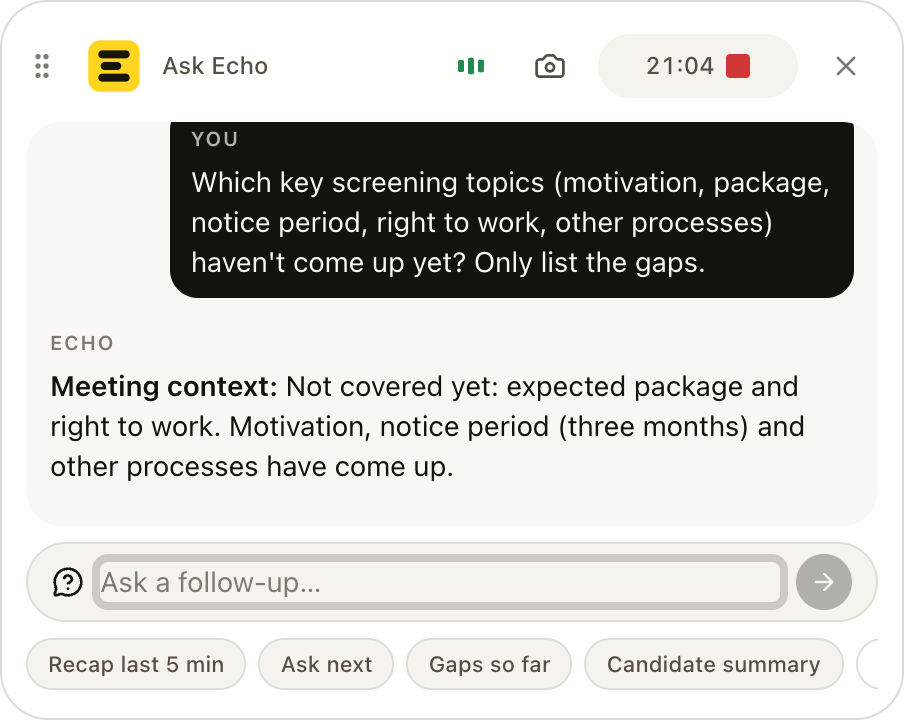
After the interview
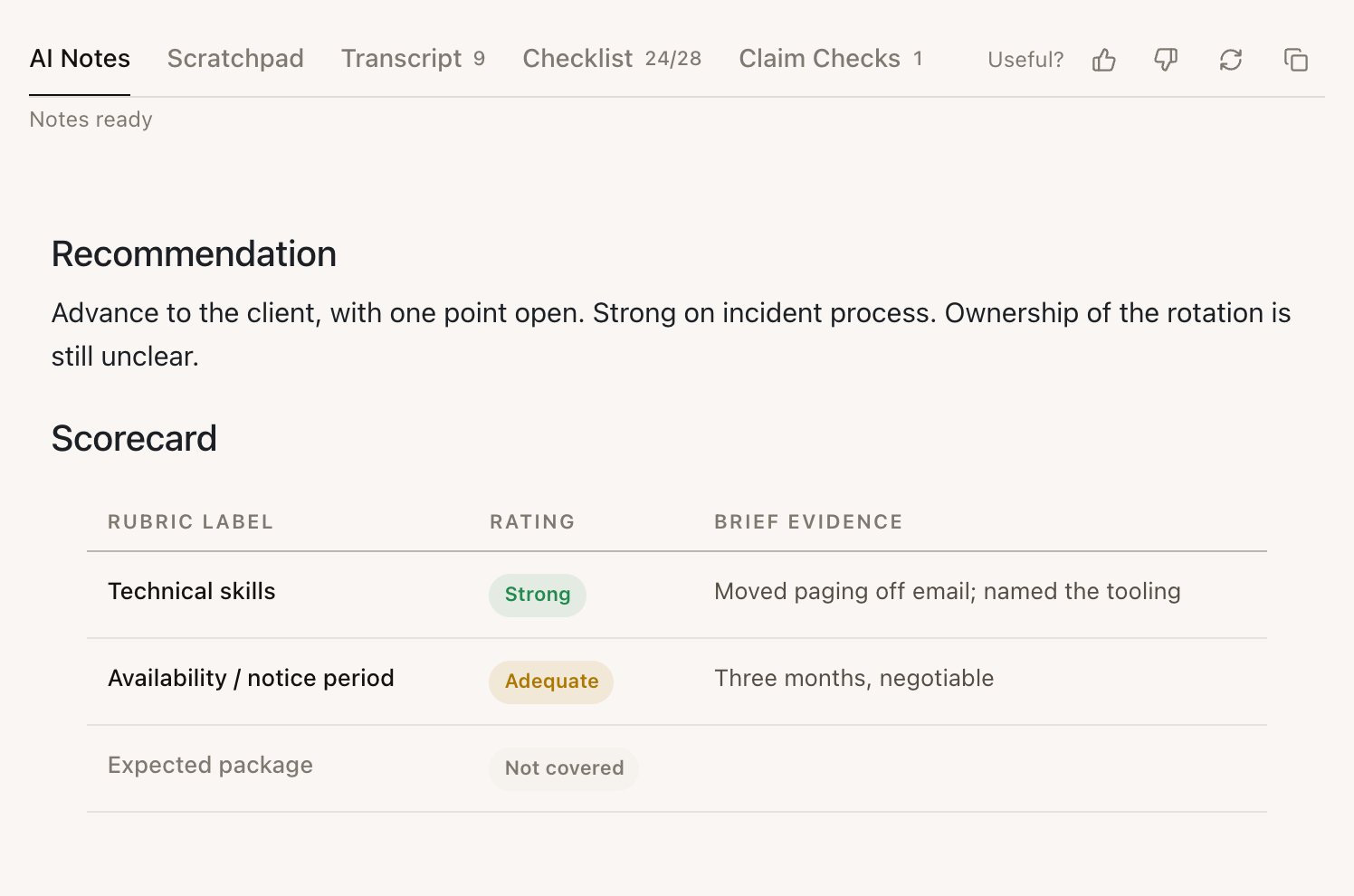
- Recommendation: whether to advance the candidate, with the reasoning.
- Scorecard: one row per checklist item, rated Strong, Adequate, Weak or Not covered, with brief evidence.
- Evidence by Rubric Item: the moments in the interview behind each rating.
- Communication: how the candidate communicated, such as clarity, structure and listening.
- Action Items: next steps such as references to check and the focus for the next round.