
Connect
- Open Settings › Integrations and find SkillfloHire.
- Select Connect. You use your existing sign-in; there’s no separate account.
- Choose the Hire workspaces Echo can read.
Link an interview before it happens
For a Candidate interview on your calendar, the brief page shows a Hire link panel: “Link this meeting to a Hire candidate so it shows up on their profile.”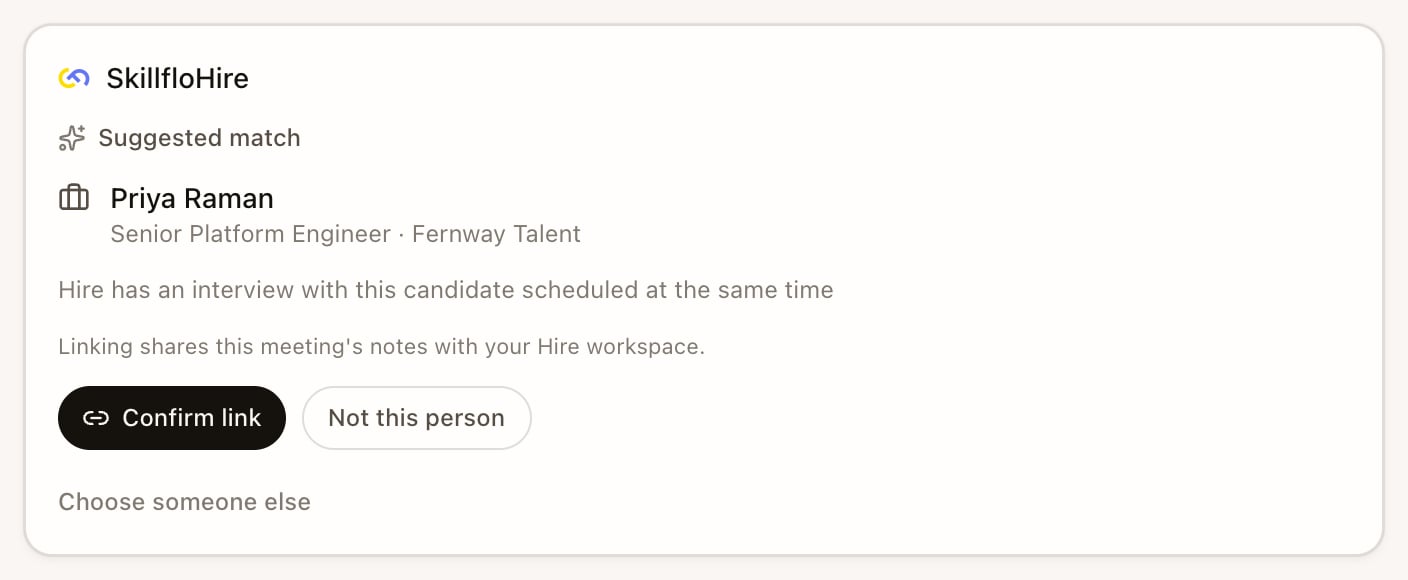
- When Echo finds a likely match, select Confirm link, Not this person or Choose someone else to search by name or email.
- When exactly one Hire candidate matches the attendee’s email, Echo links them automatically when you open the brief. That shares the meeting’s notes with Hire, so change or unlink it if you don’t want that.
- Interviews scheduled from Hire link automatically and say so, with Undo.
What linking does
- Before the interview, Echo uses the job description, screening questions, rubric and CV in the brief and Questions to ask.
- After the interview, the meeting’s notes become visible on the candidate in your Hire workspace. Hire reads them where they are in Echo; nothing is copied.
The Hire link appears on interview Meeting Types only: Candidate interview, and custom types classified as interviews. Existing custom interview types retain their classification when Live Assist is hidden. Client intake and debriefs aren’t linked.
Create a Hire job from Echo Agent
With Hire connected, you can ask Echo Agent to set up a job:Create a Hire job from this JD, with AI interview questions on Kubernetes and on-call.Echo reads what you gave it and drafts the job and its interview questions, then shows a single review with the workspace, the job fields, the questions and anything it couldn’t resolve. Nothing changes in Hire until you confirm the review and approve each change. Echo creates the job as a draft; publish it and invite candidates in Hire. Approving these changes on desktop needs the latest version of Echo.